
In all the 15 years I’ve owned iPhones, I’m happy to say I’ve never lost one. Misplaced, yes, but always eventually found. Dropped in a pond, yes. Cracked a screen, yes. But lost? Never. Here’s how I’ve done it. You should some of these steps before you lose or misplace your phone.
- My top recommendation is to set up and learn to use the “Find My” app. Find My (formerly called Find My Friends) is already installed on every iPhone. If you don’t see it on yours, enter “Find My” in the iPhone search bar to get to it. To set it up, open the app and share your location with friends or family members. Later, if you misplace your phone, any of those contacts can bring up “Find My” on their own iPhone to help you find your misplaced iPhone. The app can display your iPhone on a map, and play a sound on it to help you locate it. The sound will play even if your iPhone is silenced.
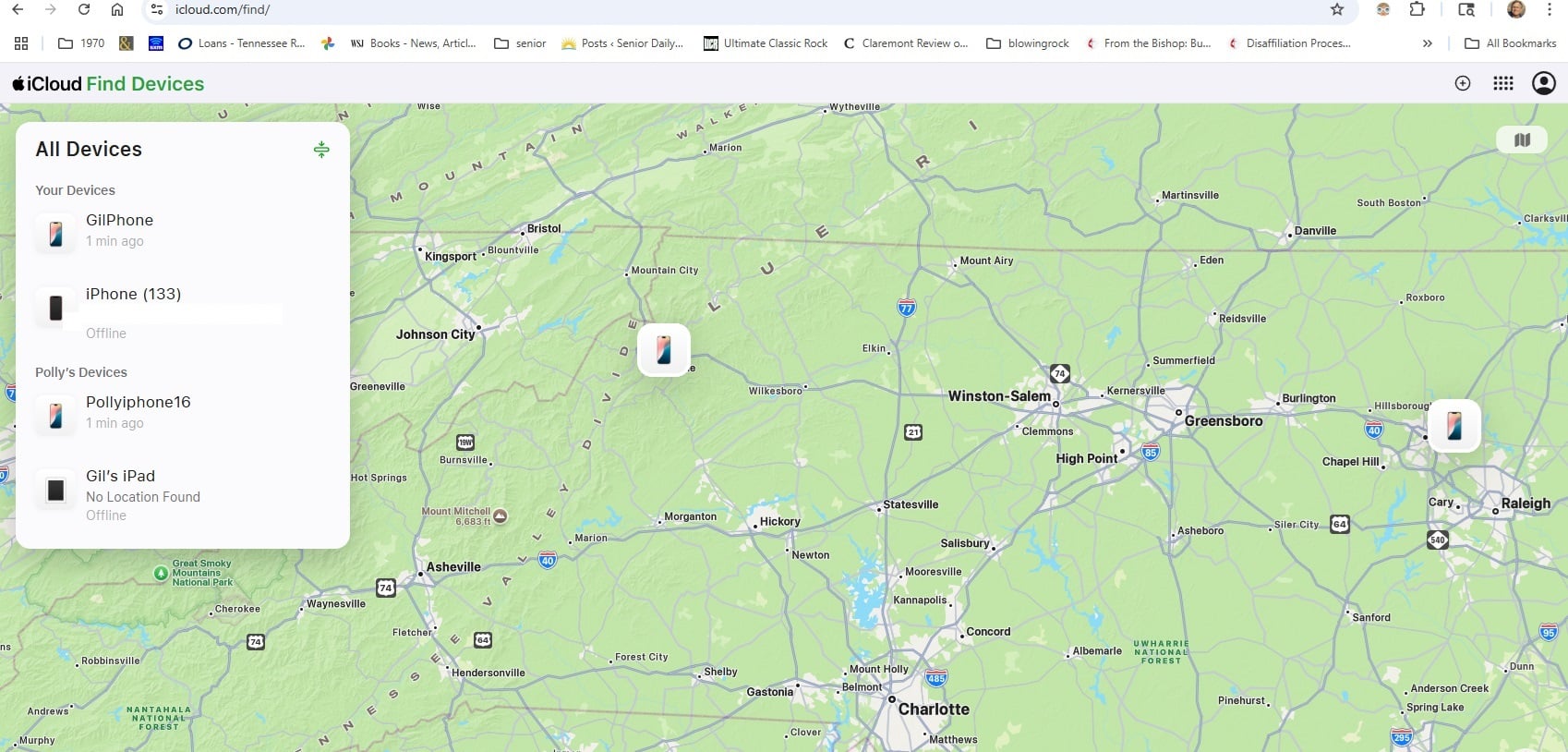
This has saved me many times. Set up Find My and learn to use it before you misplace your phone. If you want more details see this article from Apple: Set up Find My on your iPhone, iPad, or Mac - Next, try out Find My from other devices you have. Find My will work on an iPad, a Mac, an Apple Watch, and even on a Windows PC. On a Windows PC go to: https://www.icloud.com/find/ From there you can view your iPhone’s location on a map and play a sound on it. You should try this out before you misplace your phone. You will need to log in with your Apple ID, so have your password.
- If you really, really have problems keeping track of your iPhone, consider buying an Apple Watch. With the Apple Watch Series 3 and later models, you can tap on your watch to play a sound on your misplaced iPhone. With newer Apple Watches, Series 6 and later, you can also see your misplaced iPhone on a map. Also you can set up your Apple Watch to give you a warning beep when you leave your iPhone behind.
If you want to buy an Apple Watch, the newest model, Series 10, starts at about $300. Series 6 watches (these are 2020 models) start at about $100 for a refurbished model from Amazon or Walmart. - Get a Tile, set it up on your iPhone, and keep it on a key ring. A Tile is about $25 from Amazon or Walmart. Once it is set up, if you misplace your phone, click on the Tile to play a sound on your iPhone. This only works in Bluetooth range (about 250 ft).
- The easiest way to find your iPhone is probably just to have someone call it. But if your iPhone is set to silent it won’t ring. There is a solution for this: set up a few contacts who can ring your phone even when silenced. To do this, view Contacts, select one, click Add to Favorites, click Call, then Phone, then the number they can call from that will always ring your phone. Also, make a habit of having your ringer on whenever possible. If I go into a setting where I need to turn off the ringer, I do so, but I try to remember to turn it back on later.
- Make a point of “doing inventory” when you leave a store or restaurant. As you leave try to remember to ask yourself, Do I have my phone, wallet and keys? Also make a habit of never putting down your phone at the cash register. Put it in a pocket or purse. Also, use a brightly colored case – something that will stand out.
- Tape a note on the back of your phone telling the finder what to do if they find it. For example, just a note saying “If you find this iPhone, please call …” can save you. For the number to call, use the number of a family member or relative. If you want to mention a reward, that might help. Instead of pasting a note you can create a screen saver with the same info.
- Set up a Medical ID on your iPhone, and allow anyone to view your emergency contact even when the iPhone is locked. Set this up through the Apple Health app. Read more from Apple at: Set up and view your Medical ID
- While at home, always leave your phone in the same place. Train yourself to set your phone down in the same 2 or 3 spots of your home. During the day, maybe leave it on the kitchen counter, next to a charger. Nights, have it on a bedside table, again, near a charger. After a few days this will become a good habit.
- Finally, if you have misplaced your phone, don’t put off finding it. Thinking “Oh, I’ll find it tomorrow” is a bad idea. The longer it is missing, the less the chance of finding it.
For more information, see:
Below is a video from Apple on how to use Find My on the Apple Watch. You can read more at: Find misplaced devices with Apple Watch.

