
Since we’ve all been hunkered down in place for almost a year now, we’ve come to rely on video chat to stay in touch with friends, family, and co-workers. Before the COVID-19 crisis, video chat was used mainly for business meetings; today, we’re all using it to replace face-to-face contact.
The question is, with so many video chat platforms available, which are the best to use for one-on-one chats? Let’s look at the major chat platforms to help you make the right choice.
Apple FaceTime
If you have an Apple iPhone, you’re probably familiar with FaceTime. This is a video chat service that enables face-to-face calls between any Apple devices – iPhones, iPads, even Mac computers. It’s easy to use and integrated into your phone’s contacts list. It’s also, like all the platforms we’ll discuss here, totally free to use.
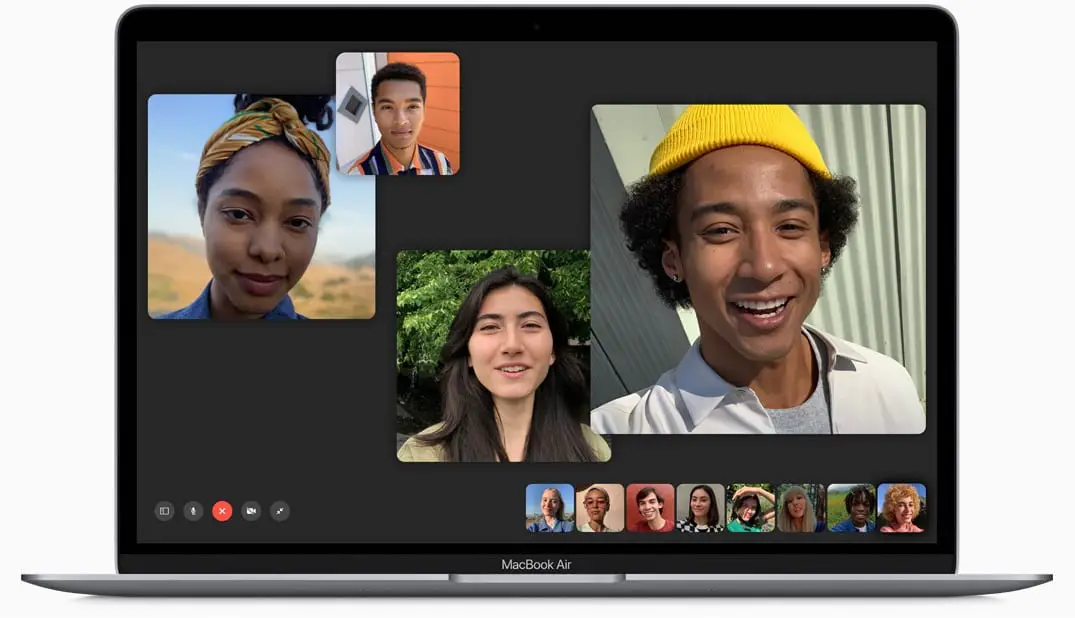
To start a video chat with someone, just scroll to their name (in either the FaceTime or Contacts app) and then tap the Video icon. The other person answers much like a regular phone call, then you can start chatting.
FaceTime is a great choice if you and the person you want to chat with both have Apple devices. Unfortunately, FaceTime is not available for Android phones and tablets, Windows computers, and Chromebook computers. So if you want to chat with someone who isn’t an Apple user, FaceTime isn’t an option.
Click here to learn more about Apple FaceTime.
Facebook Messenger
Another easy-to-use video chat platform is Facebook Messenger. Messenger lets you conduct video and audio chats, as well as send and receive text messages, with other  Facebook subscribers. Messenger is a separate app on phones and tablets, and part of the Facebook website on computers. It’s fully cross platform, so you can chat with any of your Facebook friends whether they’re using an Android or Apple phone or tablet, or Windows, Mac, or Chromebook computer.
Using Messenger is just about as easy as using FaceTime. All you have to do is access your Facebook contacts list, select a name, then click or tap the video camera icon. It’s free to use.
Messenger is also built into the line of Facebook Portal smart displays. These devices, designed specifically for video chat, that include a built-in camera, microphone, speaker, and touchscreen display. You can control the Facebook Portal by tapping the screen or using voice commands, such as “Hey Portal, dial Bob.”
The big catch with Facebook Messenger is that you have to have a Facebook account to use it. If you want to chat with someone who isn’t on Facebook, you can’t use Messenger to do it.
Click here to learn more about Facebook Messenger.
Click here to learn more about Facebook Portal devices.
Google Duo
A better option for one-on-one video chats is Google Duo. Duo comes preinstalled on most Android phones and devices, and is available as a free app to download for the iPhone and iPad. You can also use Duo on any computer (Windows, Mac, or Chromebook) from within any web browser; all you have to do is go to the Duo website.
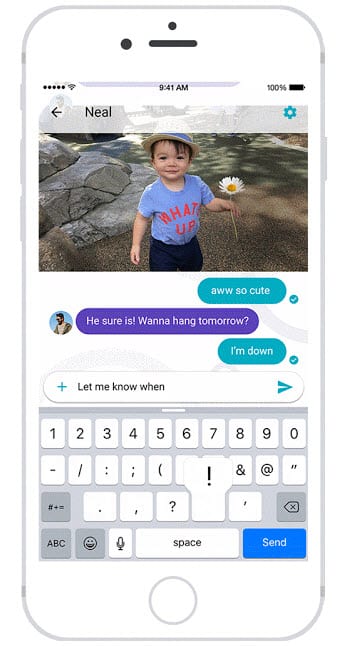 Duo is extremely easy to use. If you have an Android phone it integrates with your phone’s contacts and dialing app. It works a lot like Apple FaceTime, but across all current platforms and devices. That means you can use it to talk with people who have iPhones, Samsung Galaxy phones, Google Pixel phones, or any type of computer.
The only slight drawback to Google Duo is that anyone using it has to have a Google account. Fortunately, Google accounts are free and, if you use Gmail or any other Google service, you already have one.
Click here to learn more about Google Duo.
Skype
Another cross-platform option for one-on-one video chats is Skype, which is owned by Microsoft. Skype works on virtually all platforms, including Android and Apple phones and tablets and Windows, Mac, and Chromebook computers. (On Windows and Mac computers, you have a choice of using the free Skype software or connecting via your web browser to the Skype website. There’s no Skype software for Chromebooks, but you can still connect through your Chromebook’s web browser.)
 Skype is more versatile than Google Duo in that it offers text messaging and voice calling in addition to video chat. It’s easy enough to use that even your grandkids can do it; I use Skype to talk with my kindergarten-age grandson all the time.
To use Skype you need to create a free Skype account or use an existing Microsoft account of some sort. If you have an Outlook or Hotmail email address, that counts. From there it’s a simple matter of selecting a contact and clicking or tapping the video call icon.
Click here to learn more about Skype.
Zoom
Finally we come to Zoom. Chances are you’ve used Zoom at one time or another over the past year. It’s extremely popular for group video chats. Businesses use Zoom for video meetings and conferences. Schools use Zoom for distance learning. Other organizations use Zoom for any meeting with more than two attendees. (For example, my wife uses Zoom to virtually attend two weekly church small group meetings.)
 Zoom isn’t just for group video meetings, however. You can also use Zoom for simple one-on-one video chats. Zoom has apps available for all devices and all operating systems, including Android and Apple phones and tablets, as well as Windows, Mac, and Chromebook computers. If you’re video chatting on a computer, you can also use Zoom from within your web browser without downloading any software.
If you’re using the Zoom app you have to have a Zoom account. (You don’t need to create an account to use Zoom in a web browser.) The consumer version of Zoom is free, although your video calls are limited to a maximum of 40 minutes apiece. If you want to chat longer than 40 minutes, you’ll need to start a new call. (Zoom also offers business versions for a monthly subscription fee that don’t have the same 40-minute time limit, but you don’t need to sign up and pay for this.)
Making a one-on-one video call with Zoom is as easy as creating a new call and then inviting the person you want to talk with. You can invite the person from within Zoom (if that person already has a Zoom account) or via email or text message. To accept the invitation and join the call, the other person only needs to click the link in the message.
Click here to learn more about Zoom.
Which Should You Use?
Which video chat platform should you use? A lot depends on what type of device you’re using.
If you and the other person both have Apple iPhones or iPads, use FaceTime. If the two of you both are Facebook users, you can use Facebook Messenger. If you don’t know that type of device the other person has, use Google Duo, Skype, or Zoom, whichever you’re both most familiar with. And if you want to create a group call with more than one other person… well, that’s another story for another article.
